
Create from your material
Draft from an idea or use the available document and video workflows. Choose the output language independently of the interface.
About AIPPT.APP
AIPPT.APP brings AI drafting, slide review and presentation tools into one browser workspace. Start with the material you have, shape a draft for your audience and review what you will share.
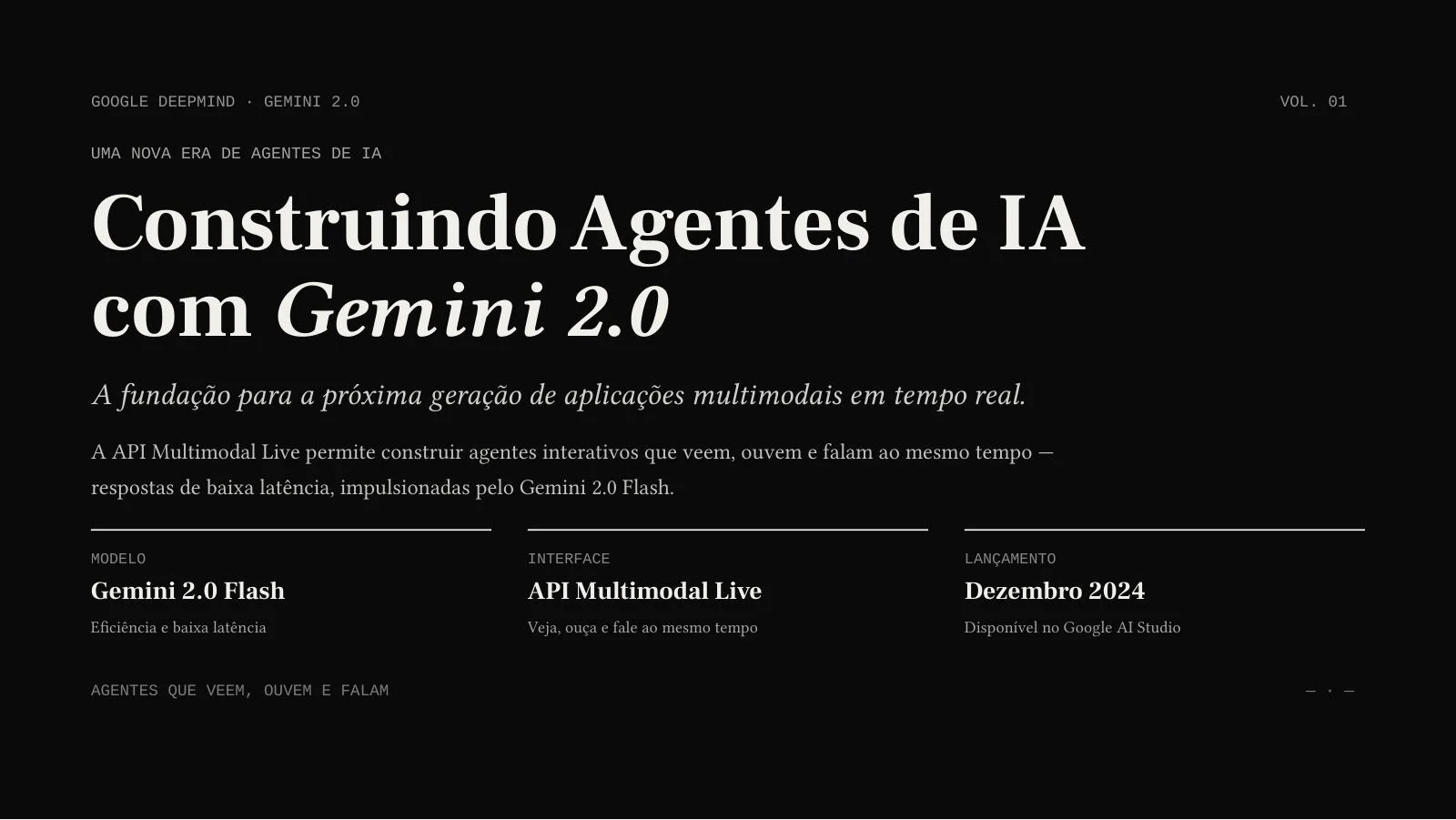
This Portuguese deck was actually generated from a public English video. Open the complete example to see the source, selected settings, reviewed slides and the exported PPTX.
Draft from an idea or use the available document and video workflows. Choose the output language independently of the interface.
Use the redesign workflow to explore a new presentation of your content. Compare the result with the original before using it.
Use presentation tools such as PDF export, merging and compression for the next step in your workflow. Each tool explains its own input and limits.
Choose your source, audience and presentation settings. Sign in and review the generation credits and your account’s download access.
Generation progress appears in the workspace. Keep the task there if processing takes longer than expected.
Check content and layout, export when permitted and open the file in your presentation software. The exact editing options depend on the output.
Copy this page’s localized product summary as Markdown for an AI assistant, or open the separate machine-readable reference.
# Turn your ideas into a presentation

AIPPT.APP brings AI drafting, slide review and presentation tools into one browser workspace. Start with the material you have, shape a draft for your audience and review what you will share.

## The work behind a useful presentation

### Begin with a clear source
Bring your topic, document or supported link. Explain who the presentation is for and what they need to understand.

### Make room for review
Check the facts, structure and layout against your source. A generated draft is the beginning of the review process.

### Choose the output that fits
AI Agent and image generation produce different kinds of slides. Consider what you need to edit before choosing a mode.

## Tools for different stages

### Create from your material
Draft from an idea or use the available document and video workflows. Choose the output language independently of the interface.
https://aippt.app/ai-generate-ppt

### Rework existing slides
Use the redesign workflow to explore a new presentation of your content. Compare the result with the original before using it.
https://aippt.app/ai-beautify-ppt

### Prepare the final file
Use presentation tools such as PDF export, merging and compression for the next step in your workflow. Each tool explains its own input and limits.
https://aippt.app/ppt-to-pdf

## An example you can inspect

This Portuguese deck was actually generated from a public English video. Open the complete example to see the source, selected settings, reviewed slides and the exported PPTX.

Explore the source and result: https://aippt.app/youtube-to-ppt

Download the sample PPTX: https://aippt.app/examples/youtube-ppt/gemini-demo-pt.pptx

## A draft, then a decision

1. **Set the context** — Choose your source, audience and presentation settings. Sign in and review the generation credits and your account’s download access.

2. **Follow the work** — Generation progress appears in the workspace. Keep the task there if processing takes longer than expected.

3. **Review before sharing** — Check content and layout, export when permitted and open the file in your presentation software. The exact editing options depend on the output.

## Questions about your presentation?

For a task, export or product question, contact the AIPPT.APP support address. The guides explain the main workflows and the pricing page covers current account options.
[email protected]

- Plans and credits: https://aippt.app/pricing

- Privacy policy: https://aippt.app/privacy-policy

- Terms of service: https://aippt.app/terms-of-serviceFor a task, export or product question, contact the AIPPT.APP support address. The guides explain the main workflows and the pricing page covers current account options.