
Layouts with editable elements
Use the source content and your design brief to create new slide layouts. Review the result in the workspace.
Review layout and text in the exported file; individual elements may differ.The source content gives the redesign a starting point.
Your instructions guide typography, spacing and visual hierarchy.
Check the new slides against the original and revise the differences.
Illustrative workflow. These diagrams show the process, not an actual AI-generated result.
A REAL REDESIGN
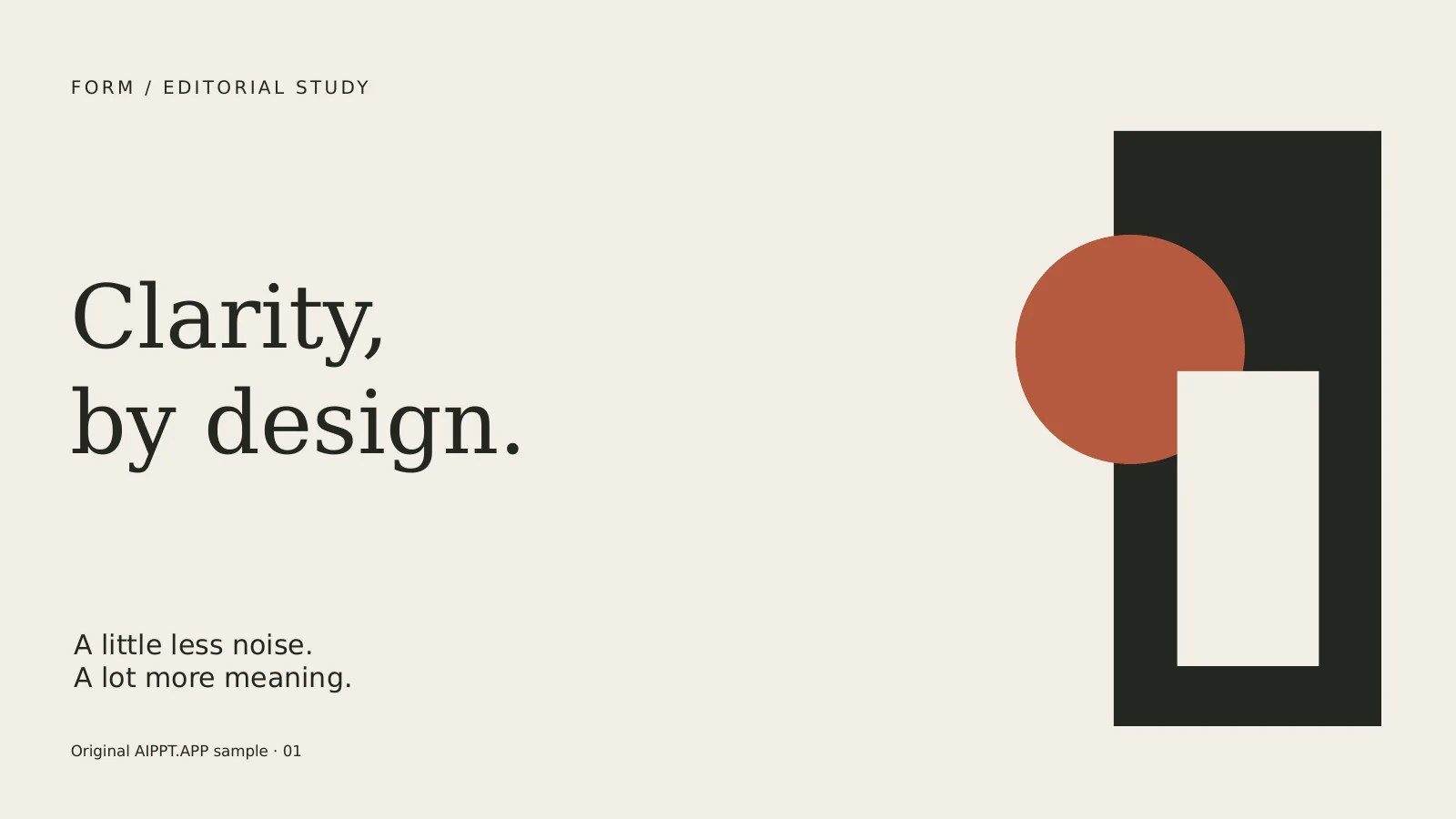
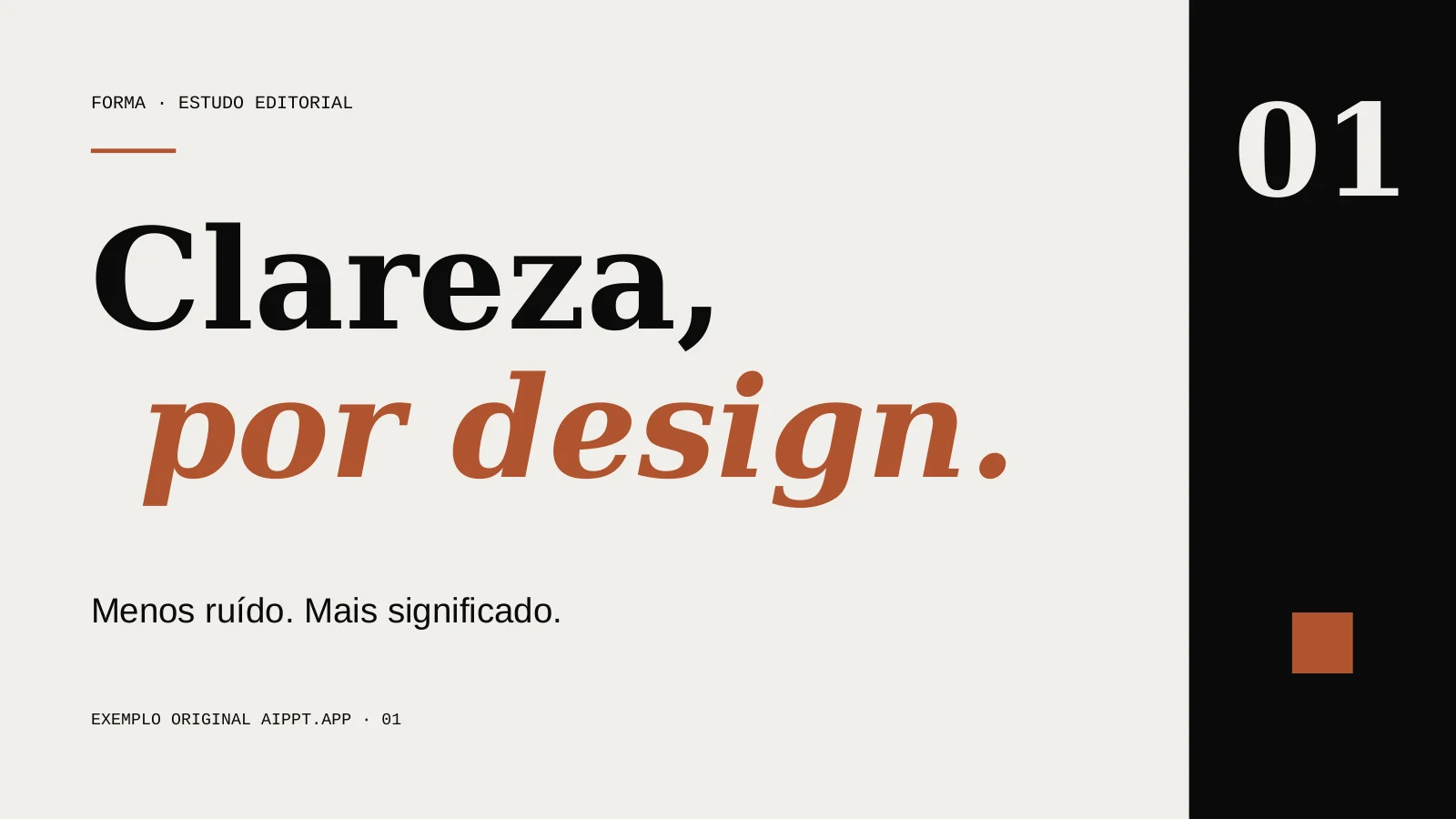
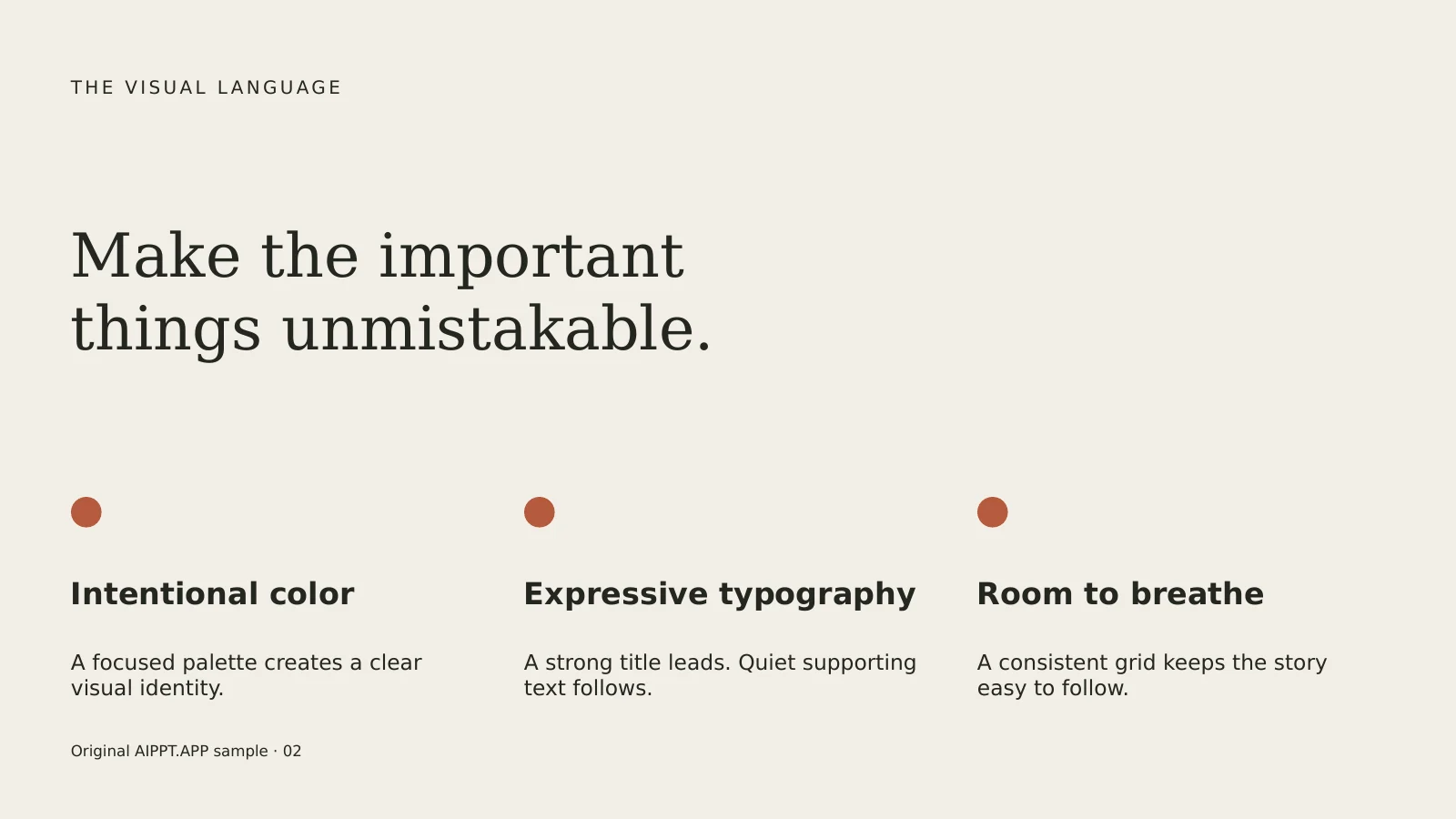
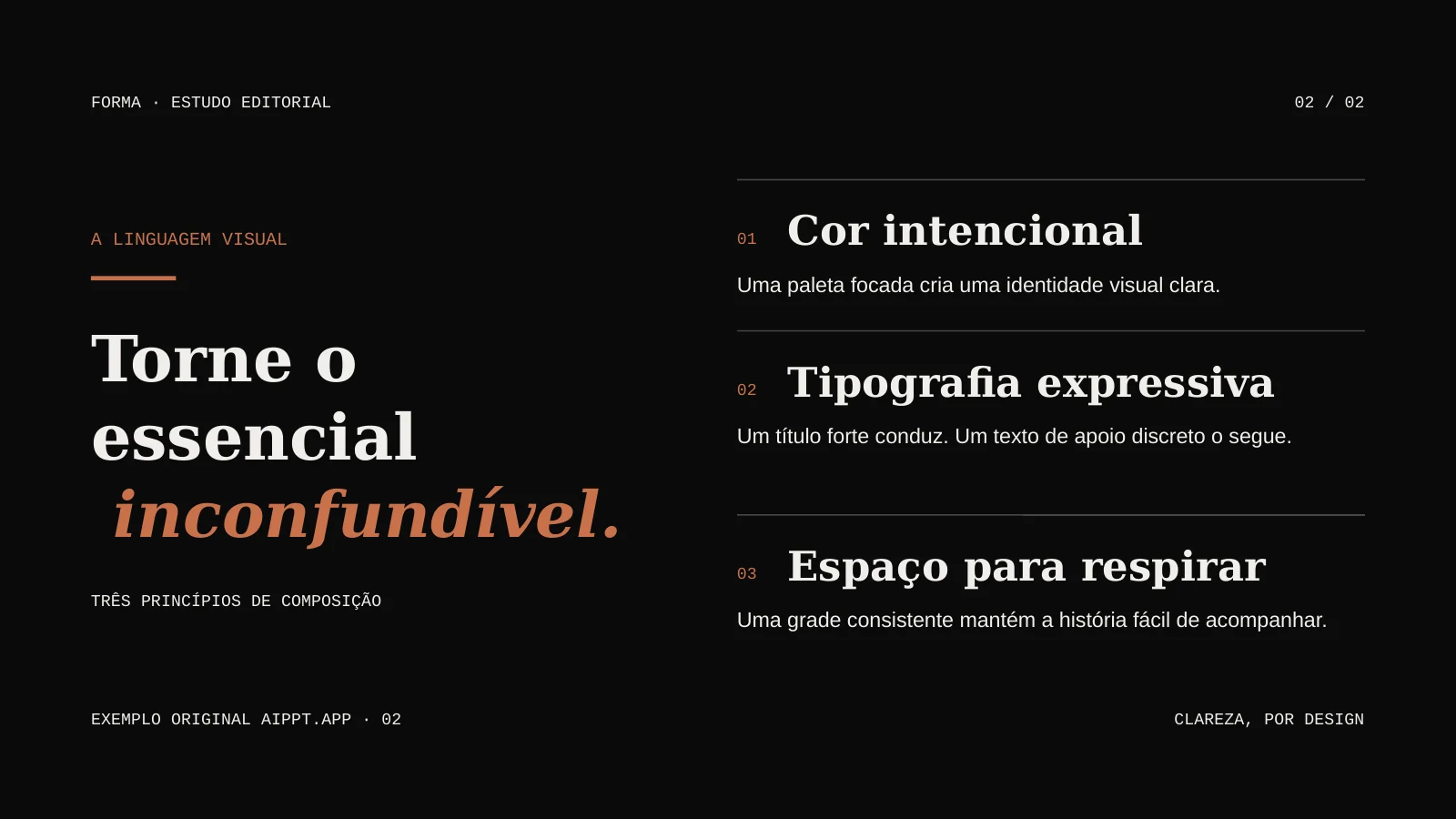
An original AIPPT.APP deck, redesigned in one task. The brief called for cream, charcoal and terracotta, with serif titles and sans-serif supporting text.
AI Agent · Sonnet 4.6 · 2 slides · no illustrations
A new asymmetric cover uses a charcoal side column and a clearer separation between the headline and supporting text.
 Open full-size image
 Open full-size image
The three original columns become numbered rows on a dark slide. Check color, typography and spacing against the source.
 Open full-size image
 Open full-size image
Original AIPPT.APP example, not client work. Both files have two slides. The result is in Portuguese in every website language. Review the files yourself: AI redesign is not a lossless conversion.
Choose an original AIPPT.APP input and copy a design brief to test. These are reference files, not redesigned outputs.
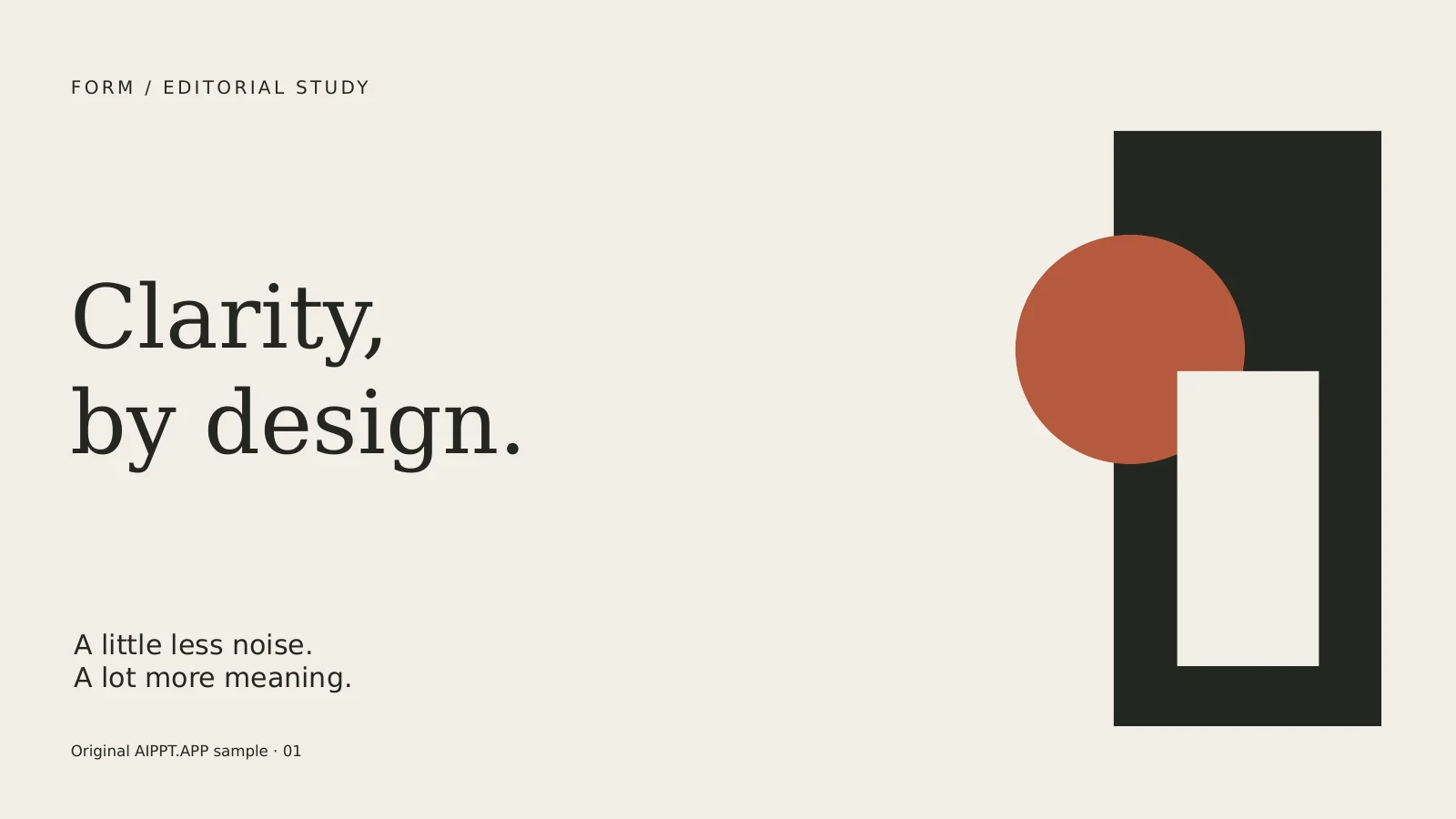
Quiet contrast. A clear point of view.
DESIGN BRIEF TO TESTBuild an editorial presentation with warm neutral backgrounds, charcoal text and terracotta accents. Pair generous space with large serif headlines. Keep the confirmed facts and chart values. Give the titles more contrast, simplify dense slides, and use generous spacing.Download sample PPTX
Two rendering modes produce different kinds of slides. Choose the mode before generation, then check the downloaded file.
Use the source content and your design brief to create new slide layouts. Review the result in the workspace.
Review layout and text in the exported file; individual elements may differ.Nano Banana 2 creates image slides. In the exported PPTX, each slide is a full-page picture.
The slide image can be resized, but its words are not separate text boxes.Start with an existing update and confirmed metrics. Rework the hierarchy, then compare figures and labels with the source.
Use approved copy and brand requirements. Explain what should change and what must remain recognizable.
Bring course slides and learning objectives. Reduce crowded layouts while checking examples, definitions and reading order.
Choose one file you are allowed to process. Prefer a modern PPTX; if a legacy PPT fails to read, save it as PPTX before retrying.
Name the audience, colors and layout priorities. Select the output language and rendering mode; the deck language is separate from the website language.
Sign in, check the credit estimate and submit once. Review all slides in the workspace, then check the account download conditions and the exported PPTX.
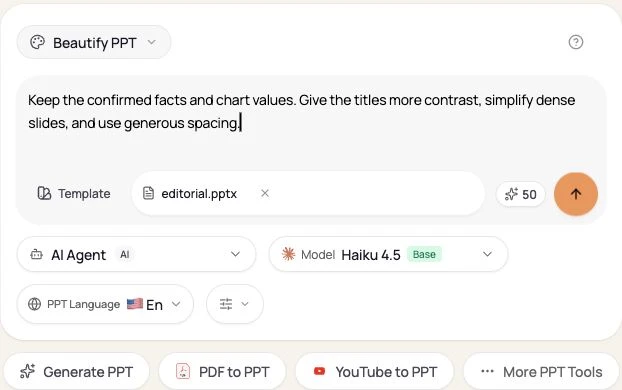
Upload a PPT or PPTX, optionally describe the desired style, and choose the rendering controls. AIPPT.APP creates a workspace and uses the source deck as context for a redesigned version. Review the result against the original before export.
The upload flow accepts PPT and PPTX files up to 50MB. Complex charts, embedded media, unusual fonts, and legacy PPT content may not reproduce exactly, so test the exported file before delivery.
The source presentation guides the redesign, but AI generation is not a lossless conversion. Verify text, numbers, charts, speaker intent, slide order, and confidential information against the original.
Yes. You can add optional instructions such as audience, preferred colors, design tone, and specific layout priorities. The instructions guide the task but do not guarantee an exact visual result.
There is no fixed completion time. Duration varies with file size, slide count, source complexity, model availability, and selected rendering mode. Progress is shown after the workspace task starts.
Yes. You must sign in to create the redesign workspace. The task uses credits, and AIPPT.APP checks the required balance before generation starts. Current purchase options are listed on the pricing page.
The redesign can change color, typography, layout, spacing, visual hierarchy, backgrounds, and illustration choices. The actual changes depend on the source deck, your instructions, and the selected model.
Compare text, numbers, charts and slide order. Extraction and AI generation may omit or alter source details; a redesign is not a lossless conversion. Verify fonts, cropping, contrast and reading order. Image-mode slides export as whole-slide pictures; use the layout mode when you need editable elements.