
Slidesgo
A template-led teaching or presentation task
Consider Slidesgo when its template collection and AI maker suit your lesson or topic. Check account limits and the license for the resources you choose.
Review Slidesgo plansPresentation tools, compared
Looking for a Slidesgo alternative? Start with your topic or source file, then compare the editing steps and the PowerPoint file you need to deliver.
Published by AIPPT.APP. Slidesgo information comes from its official pages. This is our product comparison, not an independent review or a paid Slidesgo test.
Checked on
Compare source preparation, brand requirements, revision and delivery. We have not measured comparative speed, design quality or compatibility in a paid Slidesgo account.
Slidesgo
Slidesgo’s AI maker starts from a topic or text. It also offers a separate PDF-to-PPT tool.
AI maker and related toolsAIPPT.APP
AIPPT.APP has separate entries for Word, Excel, PDF, text, Markdown and HTML, alongside topic generation.
Slidesgo
The AI maker FAQ requires login for generation and download. Free usage has a monthly limit; check current Premium conditions.
Account and plan conditionsAIPPT.APP
AIPPT.APP generation also requires an account and credits. Download access is checked separately from generation cost.
Slidesgo
Choose a design and edit generated content before download. The FAQ currently says personal image upload is unavailable in the AI maker.
Design controls and FAQAIPPT.APP
Choose an available template and explain your audience and priorities. Review the actual output rather than assuming exact source formatting.
Slidesgo
Slidesgo documents editable PPTX download. PowerPoint output is not exclusive to AIPPT.APP.
PPTX download instructionsAIPPT.APP
AI Agent output may combine text, shapes and images; image mode produces whole-slide images. Inspect editability in the exported file.
Slidesgo
Consider Slidesgo when its template collection and AI maker suit your lesson or topic. Check account limits and the license for the resources you choose.
Review Slidesgo plansAIPPT.APP
Consider AIPPT.APP if you want a dedicated document-to-slide entry point and related PowerPoint conversion tools. Review generation mode, credits and download access first.
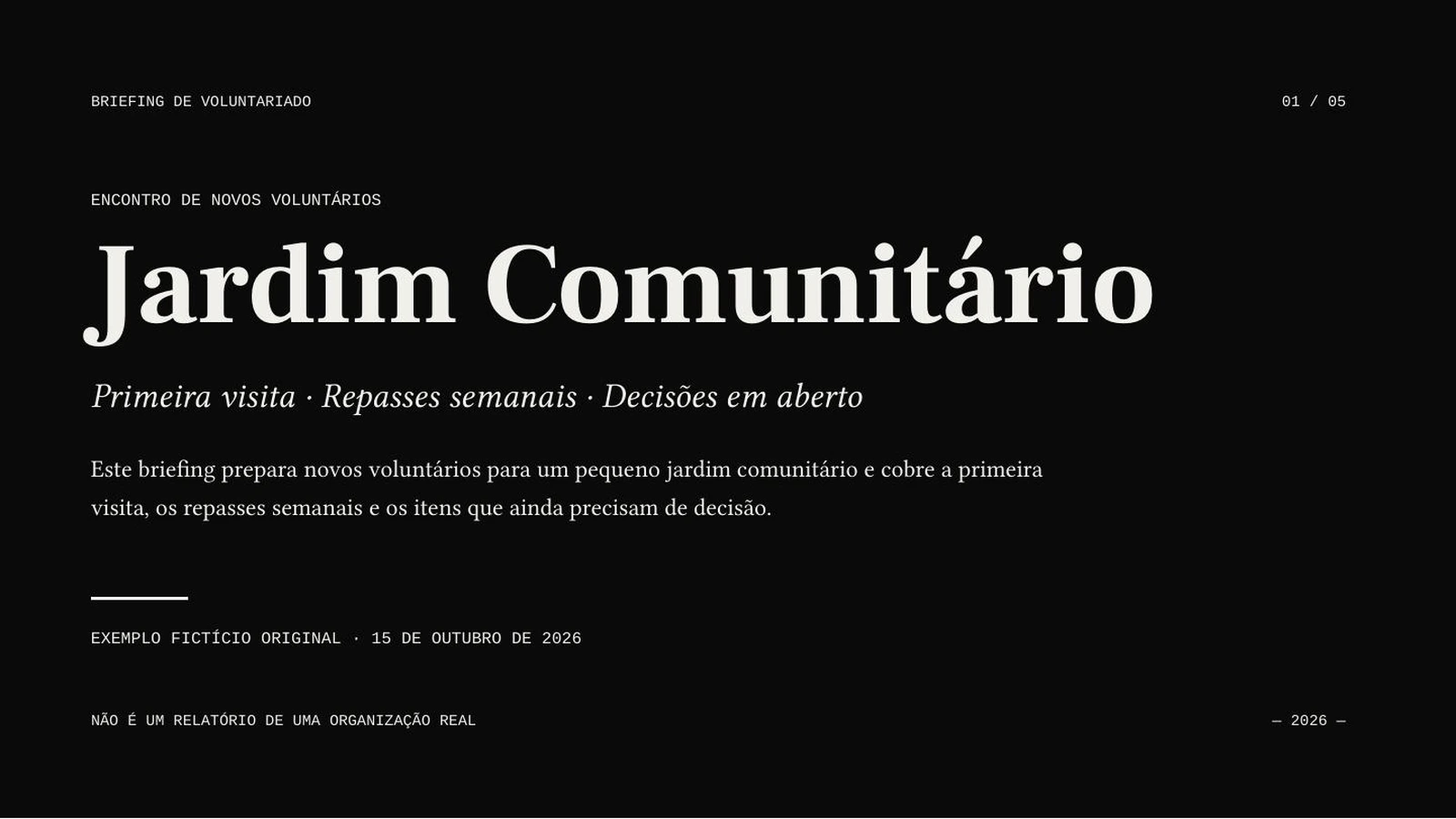
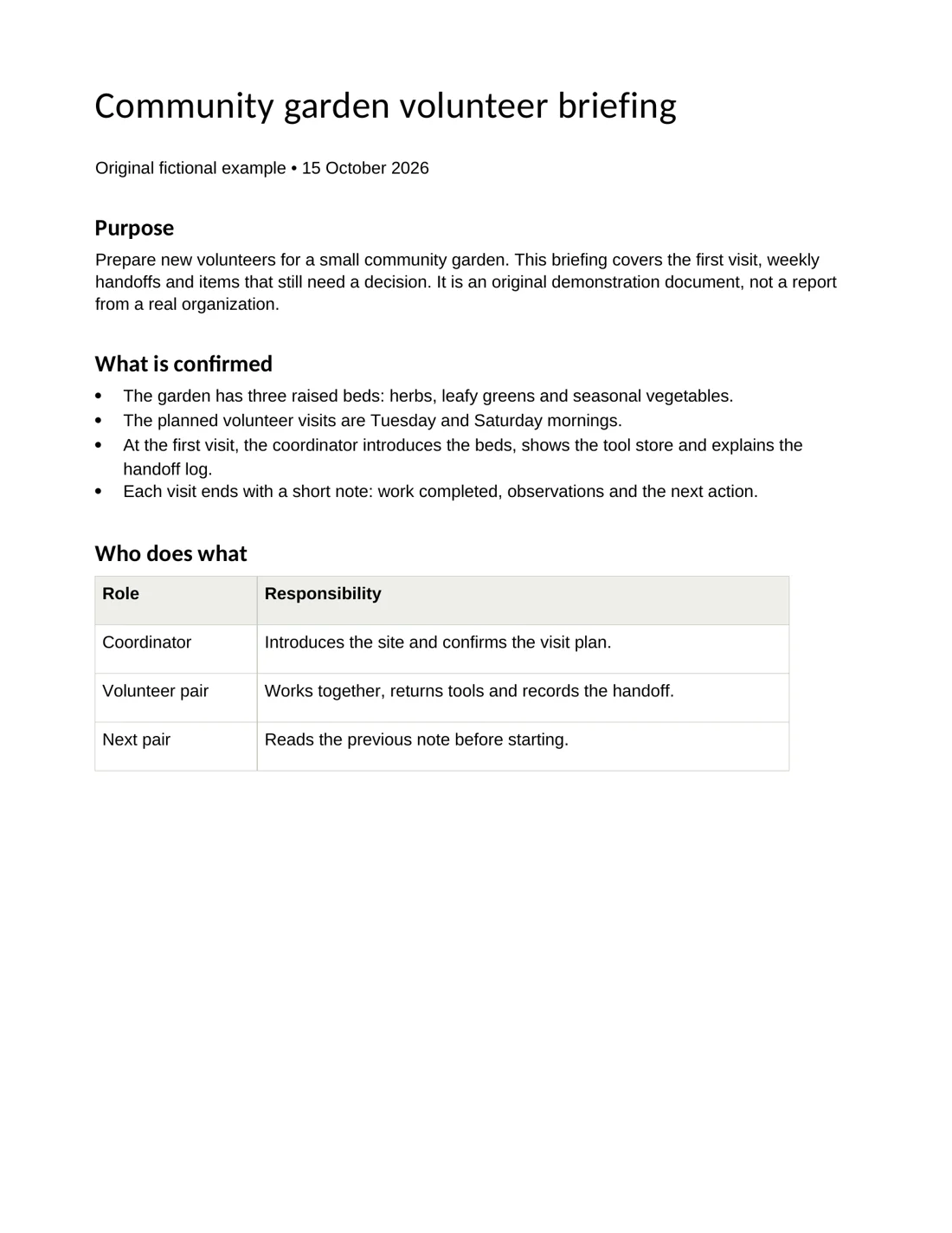
See AIPPT.APP’s input workflowsInspect an actual AIPPT.APP Word-to-slide result, its original document and downloaded PPTX. This illustrates our workflow; it is not a Slidesgo export test or a design ranking.
 Open full-size image
 Open full-size image
AI Agent · Sonnet 4.6 · Portuguese · 5 slides requested · no illustrations
An original two-page English garden briefing is the source for a Portuguese presentation. Compare the source with the actual exported slides.
Our original fictional English briefing was used to generate the Portuguese deck. The settings beside the result describe that run; the tutorial screenshot shows a separate input state.
Use your onboarding document to introduce roles and routine tasks. Ask for the audience’s level and preserve instructions that must remain precise.
Explain counts, periods and exceptions from an operational worksheet. State whether rows describe people, events or repeated opportunities.
Use a report you can share as the source for a shorter meeting deck. Check figures, sources and any caveats lost in the summary.
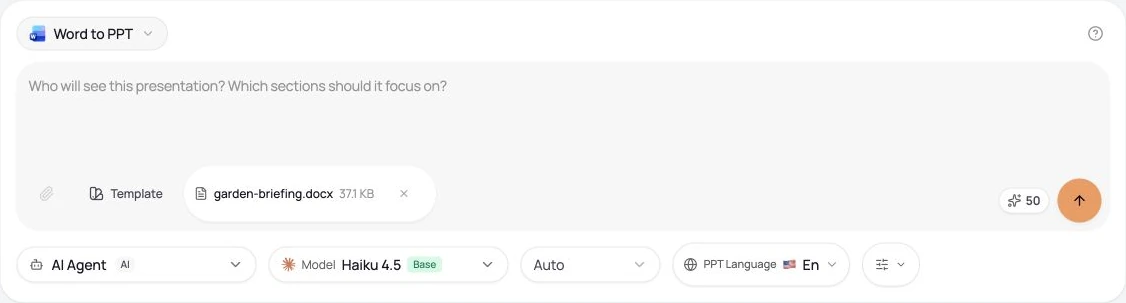
Use a small, nonconfidential document and inspect both the draft and the downloaded file. These steps and the screenshot show AIPPT.APP’s Word-to-PowerPoint workflow.
Choose a nonempty DOCX or DOC file within 50 MiB. Clear headings and complete sections give the draft useful structure.
Select the slide count, output language, model and any optional illustrations. Sign in, check the credits and submit once.
Compare the draft with its source. Correct content and layout, then open the downloaded file in your presentation software.
 Open full-size image
No. Its official AI maker generates from a topic or text, allows editing and offers PPTX download. It also links a separate PDF-to-PPT tool.
Do not assume that. Check the actual file. AIPPT.APP modes differ, and pictures inside a PPTX do not become individually editable text or chart data.
Checked on 16 October 2026. Slidesgo capabilities are documented claims, not results from our own paid account. Features and plan conditions can change.
Starting material
Account and usage
Starting material
Our own evidence includes current product code, real source-to-PPTX samples and published account conditions. We have not verified every font, app, team workflow or competitor plan. Use your own material to evaluate the fit.