
 Markdown to PPT
README for a product demo
Use your existing README to prepare a demo presentation. Tell the AI which technical details the audience needs, then verify the draft.
From structured writing to presentation
Keep writing in Markdown. Upload your MD file and describe the audience; AIPPT.APP uses its content to draft a new presentation.
Sign-in and generation credits are required. Review the estimate and your plan’s download access before starting.
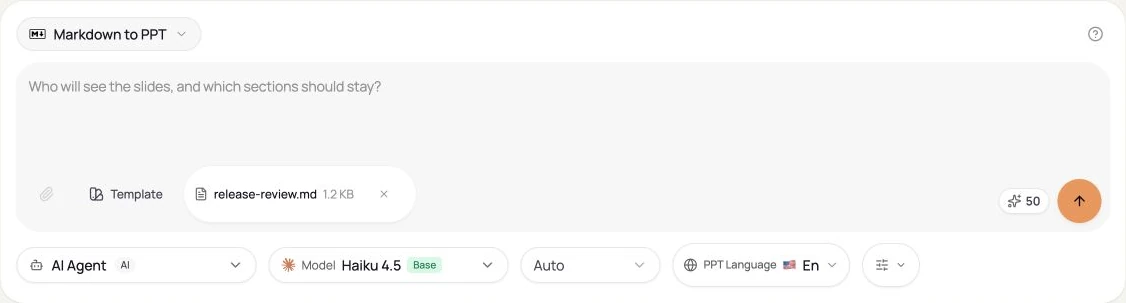
Choose a nonempty MD file within 50 MiB. Add instructions about the audience, sections to retain and how to handle code.
AI selects and groups content for a new presentation.
Check the draft in the workspace, then export when your account allows.
Workflow illustration, not a live task or an estimate of processing time.
An original Markdown review brief becomes a Portuguese presentation draft. Check how the source’s readiness states are represented.
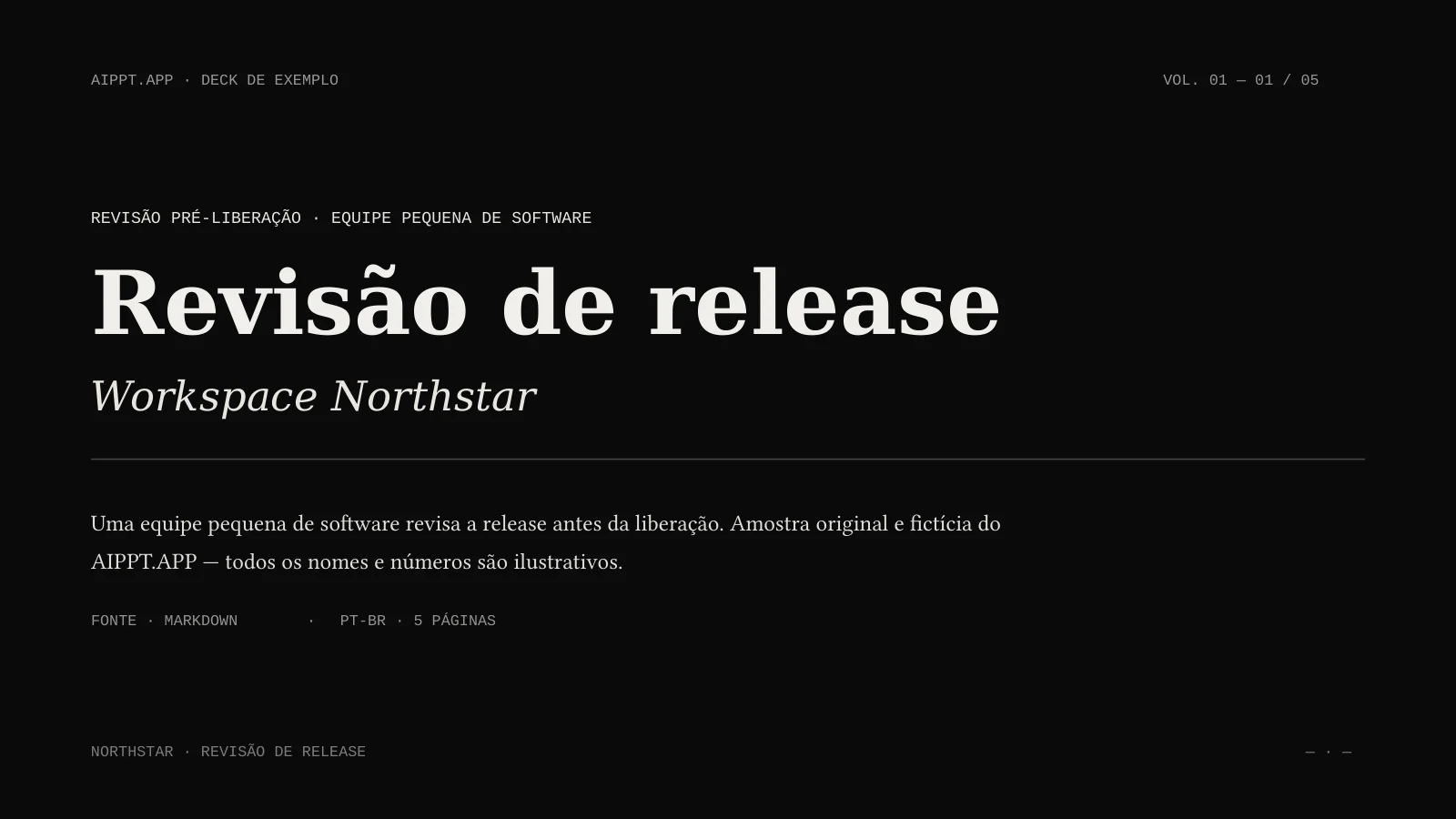
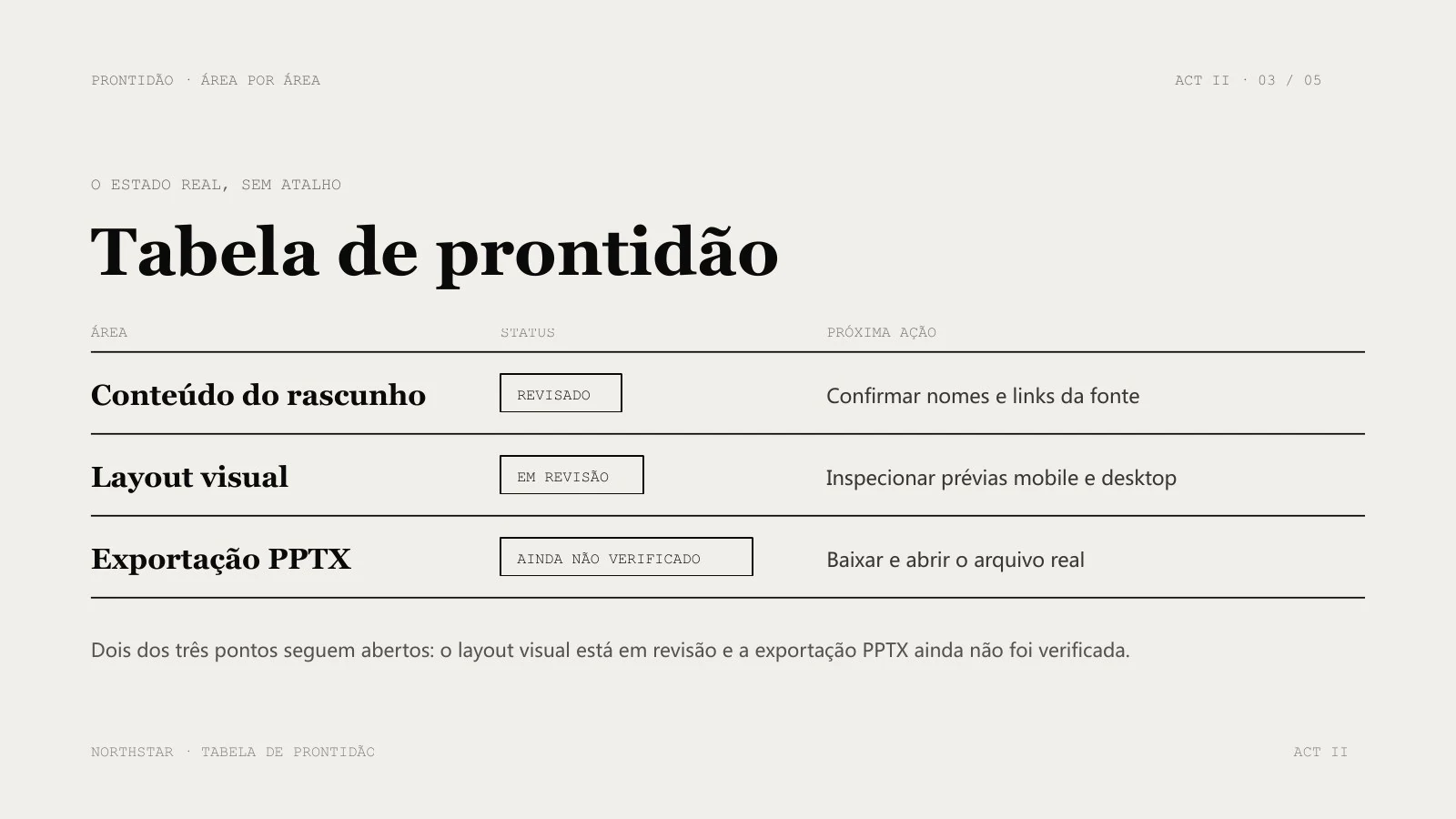
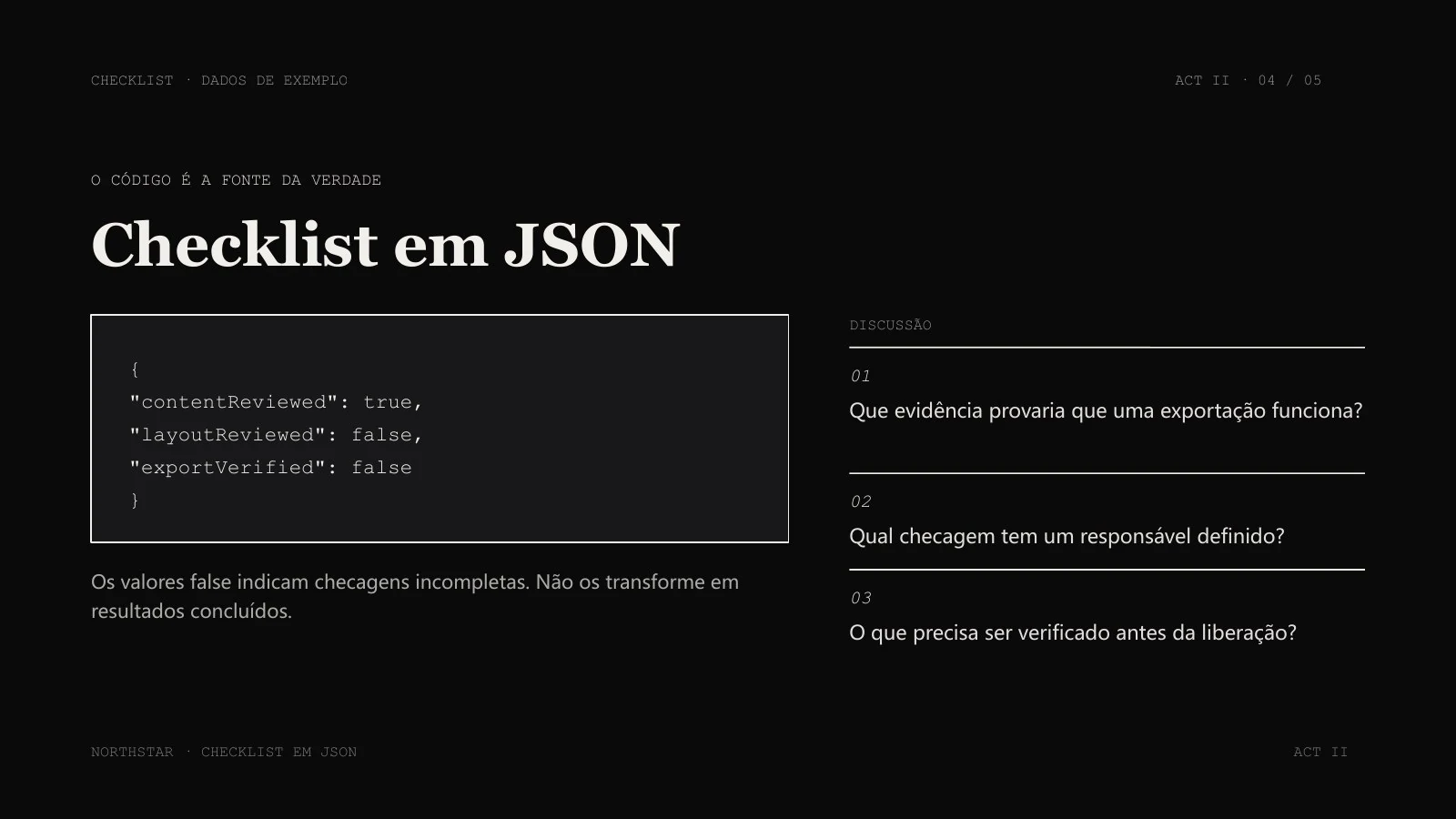
AI Agent · Sonnet 4.6 · Portuguese · 5 slides requested · no illustrations
A real generated example, shown in excerpt. Review the complete PPTX and compare it with the source before reuse.
Use your existing README to prepare a demo presentation. Tell the AI which technical details the audience needs, then verify the draft.
Start with Markdown release notes and open checks. Make sure incomplete work is not presented as finished.
Turn a Markdown lesson outline into a teaching draft. Review examples and code character by character before use.
Choose a nonempty MD file within 50 MiB. Add instructions about the audience, sections to retain and how to handle code.
Select the slide count, output language, model and any optional illustrations. Sign in, check the credits and submit once.
Compare the draft with its source. Correct content and layout, then open the downloaded file in your presentation software.
No. AI uses the source to draft a new structure. It may summarize or regroup sections. Code, tables and headings require review; exact syntax preservation and one-slide-per-section mapping are not guaranteed.
Generation uses credits. Download eligibility is a separate account permission. Check both before starting; credits alone do not guarantee export access.
Yes. Choose the output language independently of the interface. Review terminology and phrasing for your audience.
No. This creates an AI draft that can summarize or reorganize material. Requested slide count is a target. Review the complete result rather than assuming a one-to-one conversion.