
Beautiful.ai
Auto-adjusting layouts for recurring decks
Consider Beautiful.ai when Smart Slides, shared brand assets and team editing are central to your workflow. Check which plan includes the controls you need.
Explore Smart SlidesPresentation tools, compared
Looking for a Beautiful.ai alternative? Compare how you control the layout, bring in source material and hand over the finished PowerPoint file.
Published by AIPPT.APP. Beautiful.ai information comes from its official documentation. This is our product comparison, not an independent review.
Checked on
Consider the trade-offs for your own material. We have not tested a paid Beautiful.ai account or measured comparative speed or design quality.
Beautiful.ai
Smart Slides automatically align and resize content. Classic Slides provide a way to work outside those layout guardrails.
Smart Slides guideAIPPT.APP
Review slides in the browser workspace. AI Agent output may include editable text shapes and image visuals; image mode creates full-slide images.
Beautiful.ai
The documented PDF workflow accepts a PDF as source, lets you revise the outline, and generates a new presentation. Documents and links can add context.
PDF workflowAIPPT.APP
Start with a topic or choose a dedicated Word, Excel, PDF, Markdown or HTML workflow. Each entry point explains its input requirements.
Beautiful.ai
The help center documents editable PowerPoint export for Pro, Team and Enterprise. Notes are included; missing local fonts can change formatting.
Editable export guideAIPPT.APP
Download a PPTX when your account has export access. Inspect the actual file in your destination app; editability depends on the generation mode and output.
Beautiful.ai
Check the current subscription. The published trial requires a card and renews automatically unless cancelled before it ends.
Plans and trialAIPPT.APP
Sign-in and generation credits are required. Download access is checked separately. Review the current estimate and plan before starting.
Beautiful.ai
Consider Beautiful.ai when Smart Slides, shared brand assets and team editing are central to your workflow. Check which plan includes the controls you need.
Explore Smart SlidesAIPPT.APP
Consider AIPPT.APP if you want a dedicated document-to-slide entry point and related PowerPoint conversion tools. Review generation mode, credits and download access first.
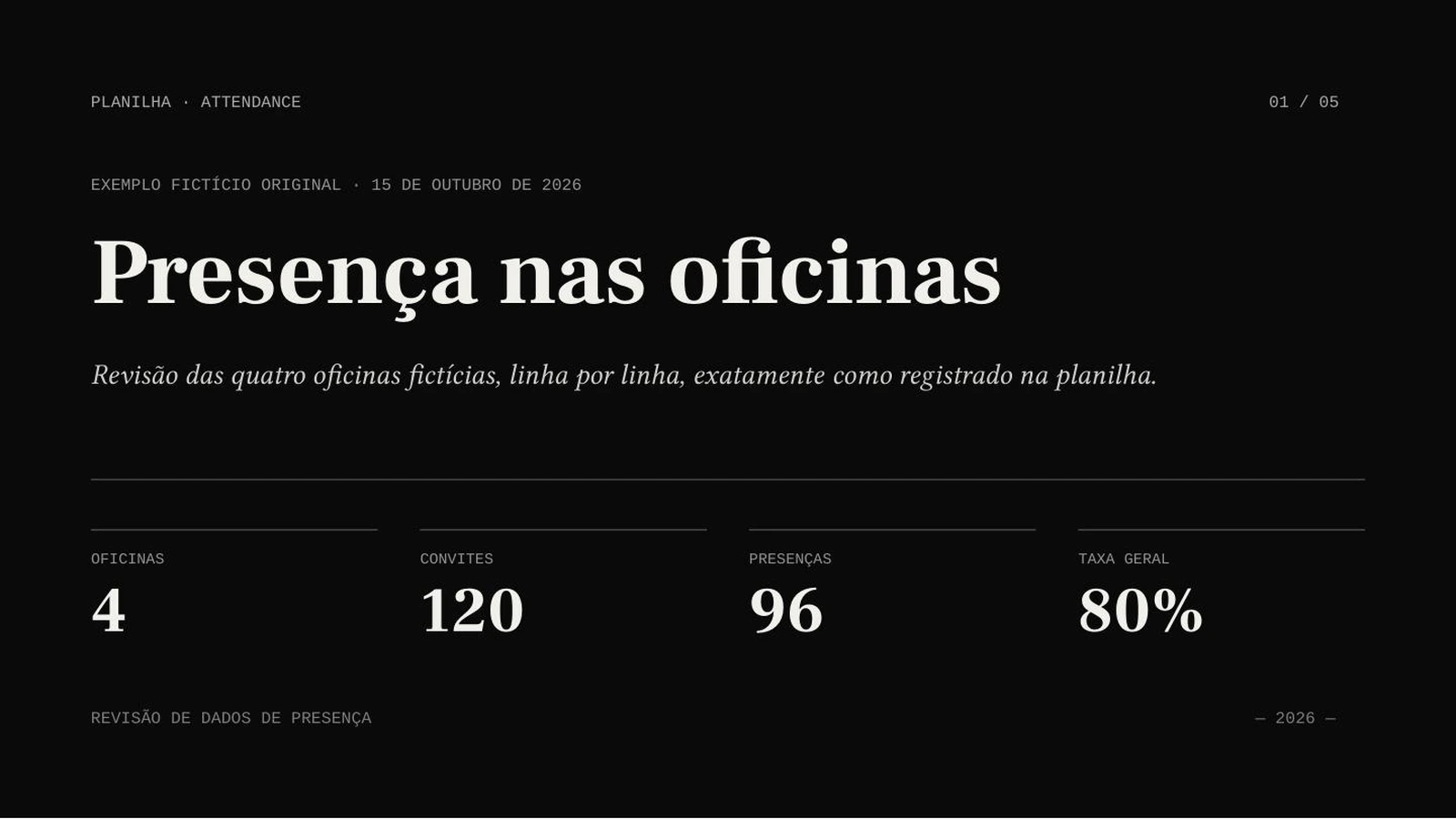
See AIPPT.APP’s input workflowsInspect an actual AIPPT.APP spreadsheet-to-slide run, with the original workbook and exported PPTX. This is not a side-by-side Beautiful.ai benchmark.
 Open full-size image
 Open full-size image
AI Agent · Sonnet 4.6 · Portuguese · 5 slides requested · no illustrations
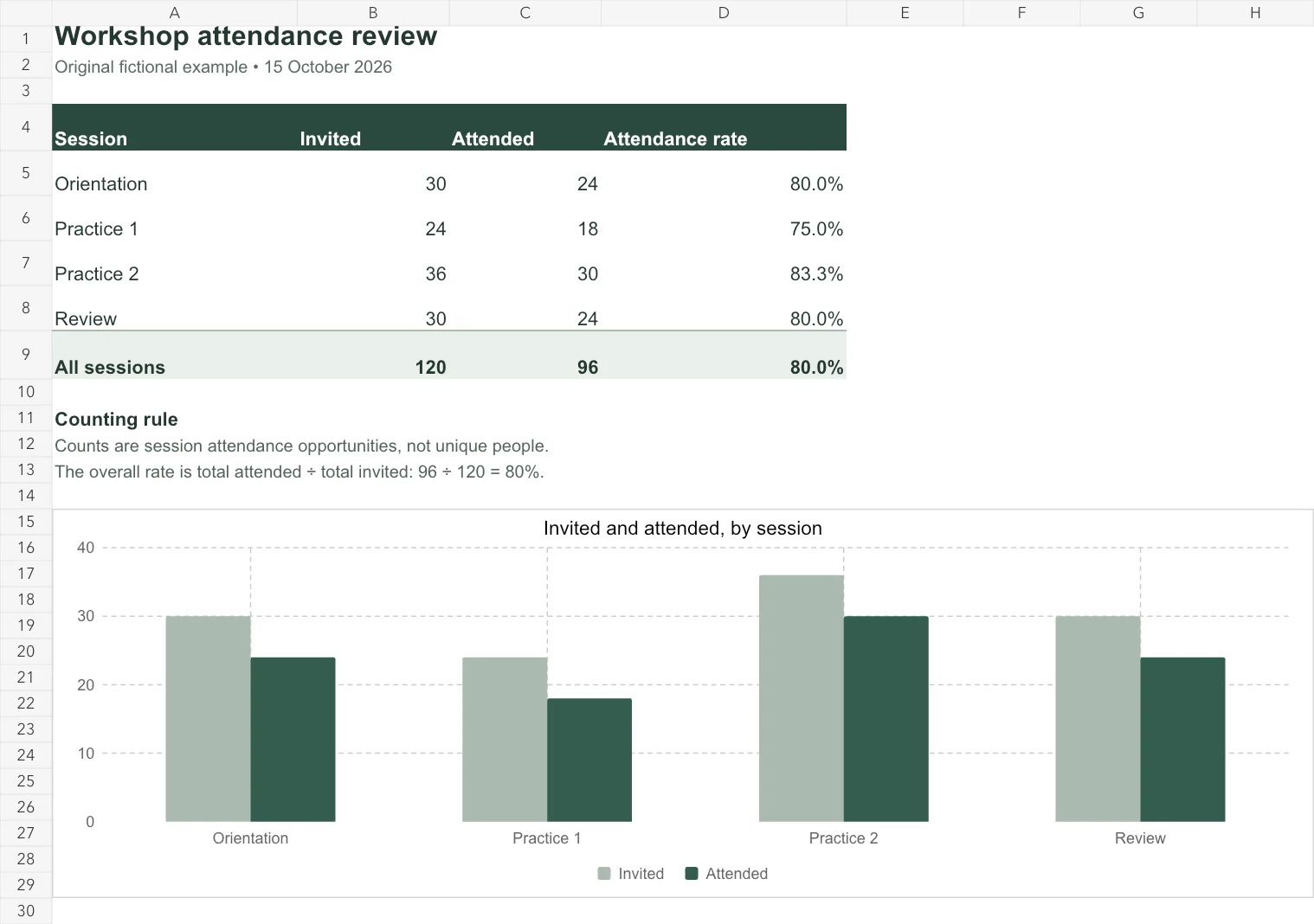
The original English workbook contains invited and attended counts for four fictional workshops. The overall rate uses total attendance divided by total invitations.
A real generated example. The source totals are 120 invited attendances and 96 actual attendances: 80%. These are session counts, not unique people. Verify the complete result against the workbook.
Our fictional English workbook counts workshop attendances, not unique people. The result is in Portuguese. Settings beside the result describe that run; the tutorial shows a separate input state.
Explain counts, periods and exceptions from an operational worksheet. State whether rows describe people, events or repeated opportunities.
Bring your own labeled results and describe the sample. Review units, missing values and denominators before presenting a finding.
Show options from your working table. Keep assumptions, forecasts and observed results clearly separate.
Use a small, nonconfidential workbook. Verify totals, percentages and counting rules against the source before using the exported deck. The tutorial shows AIPPT.APP’s Excel workflow.
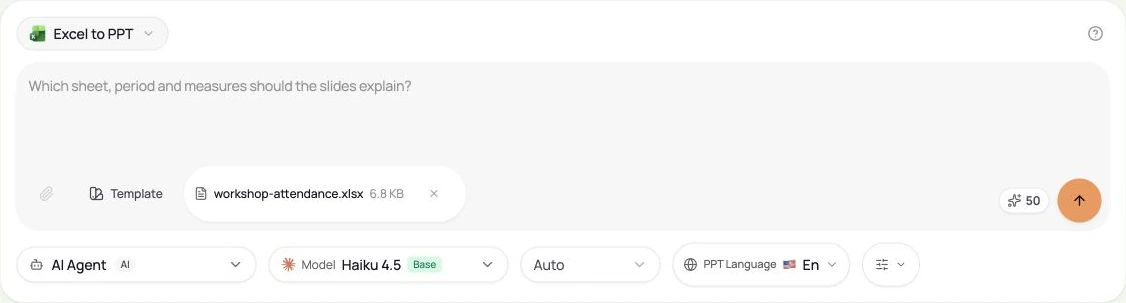
Choose a nonempty XLSX or XLS file within 50 MiB. Label columns, units and periods, save calculated values and identify the relevant sheet in your instructions.
Select the slide count, output language, model and any optional illustrations. Sign in, check the credits and submit once.
Compare the draft with its source. Correct content and layout, then open the downloaded file in your presentation software.
 Open full-size image
Yes. Its official help lists this export for Pro, Team and Enterprise and includes speaker notes. Fonts may need to be installed locally. It is incorrect to say that Beautiful.ai locks every presentation into its platform.
Do not assume so. This example is an AI draft from a workbook, not a live workbook connection. Recalculate totals and inspect the actual slides and downloaded file.
No. AI Agent can produce editable text and shapes alongside image visuals. Image mode produces full-slide images, so its text is not individually editable. Check the chosen mode and the actual file.
Checked on 15 October 2026. Competitor features below are documented claims, not results from a paid competitor account. Pricing and available features can change.
Layout control
Source material
Editable PowerPoint
Plan conditions
Layout control
Our own evidence includes current product code, real source-to-PPTX samples and published account conditions. We have not verified every font, app, team workflow or competitor plan. Use your own material to evaluate the fit.